

Investor Relations is rolling out gradually. If you do not see Investor Pipeline, Funds, Limited Partners, or Fundraising Processes, contact support@metal.ai. Workflows such as investor-request intake may also need to be configured for your organization.
Understand the operating model
Start with a small set of connected records:
This structure keeps relationship history attached to durable records instead of spreading it across inboxes, spreadsheets, and individual notes.
Set up the fundraising system
1
Configure stages and statuses
Ask an admin to map your fundraising stages and statuses under Settings → Taxonomy. Keep these separate from deal stages. See Taxonomy.
2
Bring in the core records
Create funds, LPs, and fundraising processes in Metal. If your organization uses DealCloud and the IR mappings are configured, Metal can sync these records from your CRM. See CRM integration.
3
Assign the operating fields
Set an owner, stage, status, priority, target commitment, and next relevant date on each active fundraising process. Add notes and tags only when they will help the next person act.
4
Create useful views
On Investor Pipeline → Active Fundraising, sort by Priority and Last Activity. Save views for the recurring cuts your team uses, such as a fund, owner, consultant, geography, or stage.
Run the weekly fundraising process
Use Investor Pipeline as the shared review surface: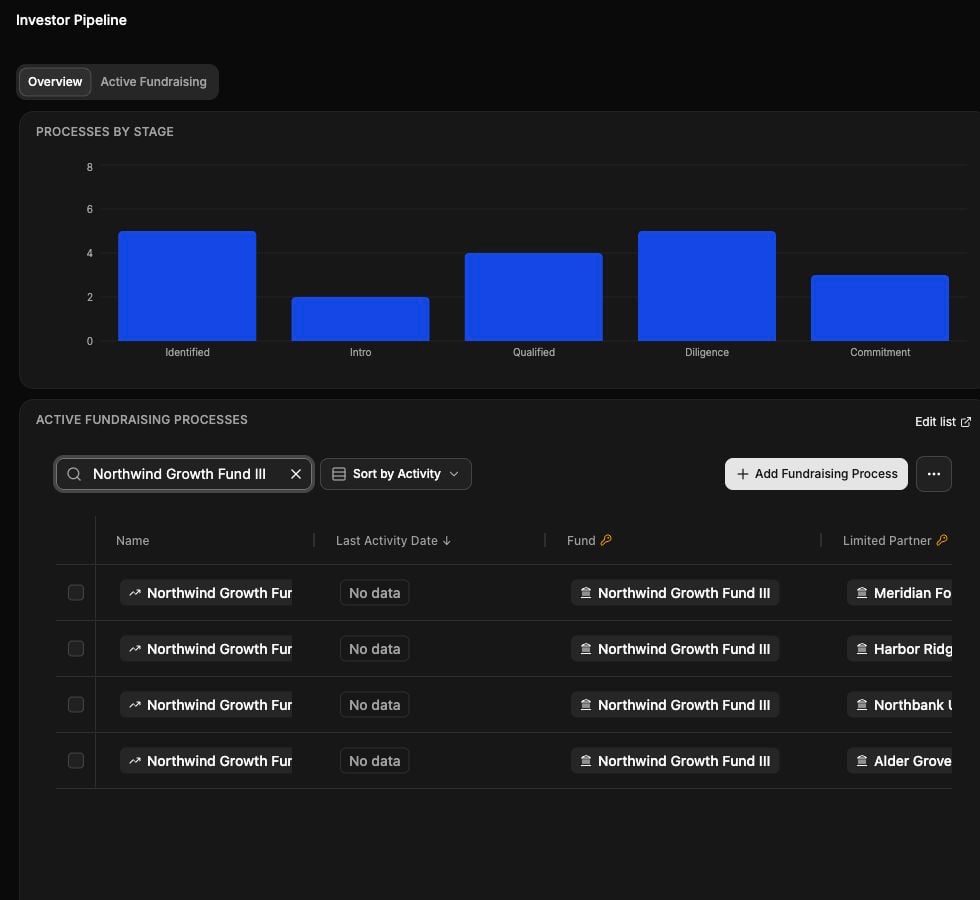
A fund-level Investor Pipeline view, captured in staging with fictional demonstration data.
- Open the saved view for the fund or team you are reviewing.
- Start with high-priority processes that have gone cold or have no recent activity.
- Open each fundraising process to review its LP, fund, contacts, notes, dates, and source context.
- Update the owner, stage, status, priority, probability, or dates when the underlying situation has changed.
- Drag a card to the next stage only when that milestone has actually happened.
- End the review with a clear owner and next action for every live process.
Enrich LPs and contacts
Keep the LP record focused on the institution and use company and person records for the people behind the relationship.1
Connect the institution
Link the LP to its company record. Add the relevant people as primary or consultant contacts on the LP.
2
Add identifying details
Give the company a website and each person a work email or LinkedIn URL where available. Better identifiers improve matching and enrichment quality.
3
Enrich at the right scale
Open an individual company or person to review enriched fields. For a target set, create a company or people list, add an AI enrichment column, and refresh it across the list. See Enrichment.
4
Review before using the result
Open View Enrichment to inspect where a value came from. Pin or override the value when your team has a more authoritative answer.
Prepare for an LP meeting
Before a meeting: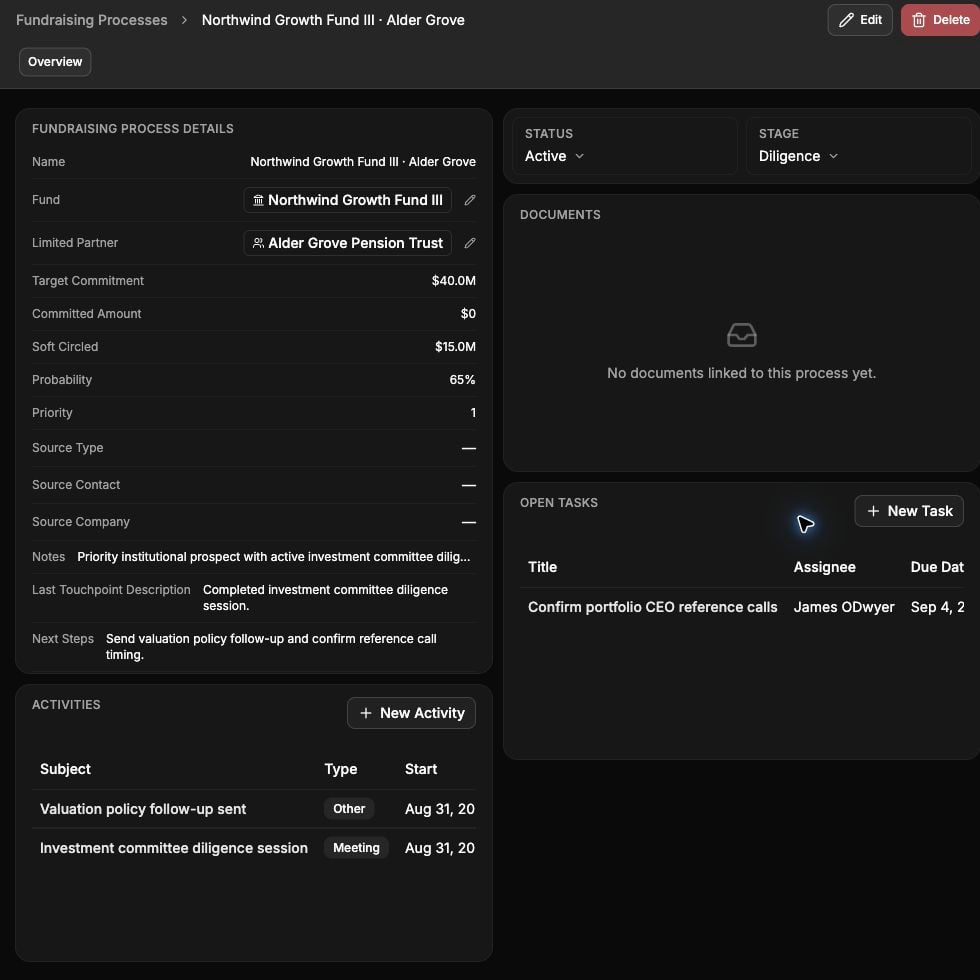
The context available on a fundraising process, captured in staging with fictional demonstration data.
- Open the LP and its active fundraising process.
- Review the linked fund, relationship notes, primary contacts, stage, priority, last activity, and upcoming dates.
- Use global search to find the relevant records and files. Use Chat to ask questions across the context you are permitted to access.
- Check the underlying source before relying on a generated answer, especially for commitments, terms, performance, or compliance statements.
- After the meeting, update the fundraising process so the next review starts from current context.
Answer DDQs and RFPs
Use the built-in DDQ Solver to extract questions, retrieve answers from a controlled source folder, review the supporting material, and export a response. See Answer a DDQ or RFP for the full process.Coordinate investor requests
Investor-request intake is usually an organization-specific workflow. A configured workflow can turn incoming requests into a shared operating queue while keeping the source message and supporting materials attached. See Organization-specific workflows for how these workflows are set up and run.- Open Automations and find the investor-request workflow.
- Open the shared request list or queue configured for your team.
- Review the request, LP, source message, owner, due date, and status before taking action.
- Assign an owner and confirm the due date. Do not let a weak contact or company match update the relationship record automatically.
- Attach or link the response source, then mark the request complete only after human review.
- Use the retained run and completion history for later follow-up and reporting.
Keep the system trustworthy
- Use one fundraising process for one LP and fund combination.
- Treat source links and timestamps as part of the answer, not optional metadata.
- Prefer explicit owners and dates over free-form status notes.
- Require review before external delivery or CRM writeback.
- Record “no reliable answer” instead of filling gaps with an unsupported claim.
- Keep saved views and workflow names simple enough that the whole team can use them.
Related
Investor Relations records
Learn the Investor Pipeline, funds, LPs, fundraising processes, and IR lists.
Answer a DDQ or RFP
Prepare the answer bank, run DDQ Solver, review sources, and export.
Working with lists
Create saved views, group records, and enrich target lists.
Run workflows
Start configured workflows and review runs, outputs, and artifacts.