> ## Documentation Index
> Fetch the complete documentation index at: https://docs.metal.ai/llms.txt
> Use this file to discover all available pages before exploring further.
# Building org-wide dashboards
> Create free-standing dashboards in Metal, add widgets through chat, and share them with users, teams, or the whole organization.
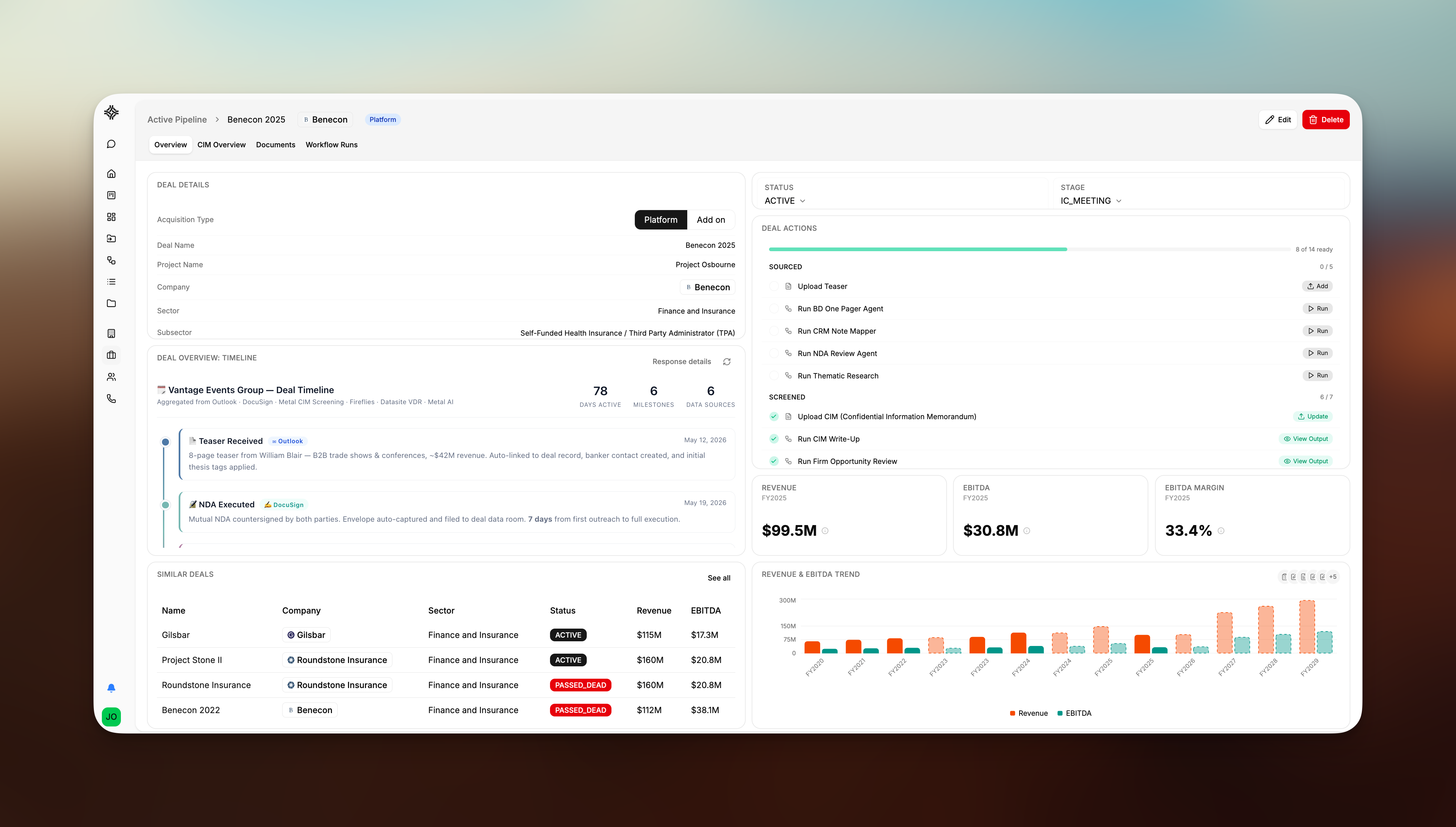
**Dashboards** are free-standing views your firm uses to track whatever matters — fund performance, pipeline health, portfolio KPIs, weekly metrics. Unlike the pipeline or per-record dashboards, a top-level dashboard isn't attached to a specific deal, company, list, or user. You build it once, share it with the people who need it, and everyone sees the same data.
Dashboards are rolling out gradually. If you don't see **Dashboards** in your sidebar, reach out to [support@metal.ai](mailto:support@metal.ai) to have it enabled for your firm.
 ## The Dashboards gallery
Select **Dashboards** in the left sidebar to open the gallery. It's split into two sections:
| Section | What's in it |
| ------------------ | ---------------------------------------------------------------------------------------------------------- |
| **My Dashboards** | Dashboards you created. |
| **Shared with me** | Dashboards other people have shared directly with you, with your team, or made available to the whole org. |
Each card shows the dashboard's name, description, and whether it's shared. Click a card to open the dashboard.
## Create a dashboard
Select **Dashboards** in the sidebar.
Click **New dashboard** next to the **My Dashboards** heading.
Give the dashboard a **Name** and an optional **Description** (for example, *Q3 Portfolio Review*). Click **Create**.
The new dashboard opens empty, ready for widgets.
## Add widgets
Widgets are the individual charts, tables, and metrics on a dashboard. You add and edit them through the docked chat panel, which opens automatically on the dashboard page.
In the docked chat, describe the widget in plain language — for example, *"Add a widget that shows total AUM by fund over the last 12 months"* or *"Add a table of the top 10 companies by revenue growth"*. The assistant adds the widget to your dashboard.
Click **Edit layout** in the header. Drag widgets to move them, drag their edges to resize, and use the delete control on a widget to remove it. Click **Done** to save.
Every widget is backed by either a **script** (for data queries) or a **prompt** (for AI-generated content). Click the **source** control on a widget to view — or inline-edit — the underlying script or prompt. Widgets you customize are marked with a **Custom** badge.
Because these dashboards aren't scoped to a single deal or company, widgets resolve against your whole organization's data. Any entity filter has to be part of the widget's own query.
## Share a dashboard
You control who can see a dashboard from the **Share** dialog in the dashboard header.
On the dashboard, click **Share** in the header.
Under **Shared with**, add individual **Users** or whole **Teams**. Everyone you add sees the dashboard under **Shared with me** in their gallery.
Toggle **Public** to make the dashboard visible to everyone in your organization. Public dashboards show an **Org-wide** badge in the gallery.
Only the dashboard's creator and its **Owners** can edit the layout, edit widgets, change sharing, or delete the dashboard. Everyone else has read-only access.
## Dashboards vs. Default Dashboards
Metal has two related surfaces. Use this table to pick the right one:
| | **Dashboards** (top-level) | **Default Dashboards** (in Settings) |
| ----------------- | ------------------------------------------------------------------ | ---------------------------------------------------------------------- |
| Where you find it | Sidebar → **Dashboards** | **Settings → Firm Guidance → Default Dashboards** |
| What it is | Free-standing dashboards for the whole org | The default widgets shown on every deal, company, list, or user record |
| Scope of the data | Org-wide — no entity filter | Automatically scoped to the record you're viewing |
| Who edits it | The creator and any owners; anyone can create their own | Admins only |
| Who sees it | You, plus people/teams you share with (or the whole org if public) | Everyone, on every matching record |
If you want a firm-wide reporting view, use a top-level dashboard. If you want every deal (or every company, list, or user profile) to open with the same widgets by default, configure that under **Settings → Default Dashboards**.
## Related
Where admins configure Default Dashboards and other firm-wide preferences.
Set up teams so you can share dashboards with a whole group at once.
## The Dashboards gallery
Select **Dashboards** in the left sidebar to open the gallery. It's split into two sections:
| Section | What's in it |
| ------------------ | ---------------------------------------------------------------------------------------------------------- |
| **My Dashboards** | Dashboards you created. |
| **Shared with me** | Dashboards other people have shared directly with you, with your team, or made available to the whole org. |
Each card shows the dashboard's name, description, and whether it's shared. Click a card to open the dashboard.
## Create a dashboard
Select **Dashboards** in the sidebar.
Click **New dashboard** next to the **My Dashboards** heading.
Give the dashboard a **Name** and an optional **Description** (for example, *Q3 Portfolio Review*). Click **Create**.
The new dashboard opens empty, ready for widgets.
## Add widgets
Widgets are the individual charts, tables, and metrics on a dashboard. You add and edit them through the docked chat panel, which opens automatically on the dashboard page.
In the docked chat, describe the widget in plain language — for example, *"Add a widget that shows total AUM by fund over the last 12 months"* or *"Add a table of the top 10 companies by revenue growth"*. The assistant adds the widget to your dashboard.
Click **Edit layout** in the header. Drag widgets to move them, drag their edges to resize, and use the delete control on a widget to remove it. Click **Done** to save.
Every widget is backed by either a **script** (for data queries) or a **prompt** (for AI-generated content). Click the **source** control on a widget to view — or inline-edit — the underlying script or prompt. Widgets you customize are marked with a **Custom** badge.
Because these dashboards aren't scoped to a single deal or company, widgets resolve against your whole organization's data. Any entity filter has to be part of the widget's own query.
## Share a dashboard
You control who can see a dashboard from the **Share** dialog in the dashboard header.
On the dashboard, click **Share** in the header.
Under **Shared with**, add individual **Users** or whole **Teams**. Everyone you add sees the dashboard under **Shared with me** in their gallery.
Toggle **Public** to make the dashboard visible to everyone in your organization. Public dashboards show an **Org-wide** badge in the gallery.
Only the dashboard's creator and its **Owners** can edit the layout, edit widgets, change sharing, or delete the dashboard. Everyone else has read-only access.
## Dashboards vs. Default Dashboards
Metal has two related surfaces. Use this table to pick the right one:
| | **Dashboards** (top-level) | **Default Dashboards** (in Settings) |
| ----------------- | ------------------------------------------------------------------ | ---------------------------------------------------------------------- |
| Where you find it | Sidebar → **Dashboards** | **Settings → Firm Guidance → Default Dashboards** |
| What it is | Free-standing dashboards for the whole org | The default widgets shown on every deal, company, list, or user record |
| Scope of the data | Org-wide — no entity filter | Automatically scoped to the record you're viewing |
| Who edits it | The creator and any owners; anyone can create their own | Admins only |
| Who sees it | You, plus people/teams you share with (or the whole org if public) | Everyone, on every matching record |
If you want a firm-wide reporting view, use a top-level dashboard. If you want every deal (or every company, list, or user profile) to open with the same widgets by default, configure that under **Settings → Default Dashboards**.
## Related
Where admins configure Default Dashboards and other firm-wide preferences.
Set up teams so you can share dashboards with a whole group at once.