> ## Documentation Index
> Fetch the complete documentation index at: https://docs.metal.ai/llms.txt
> Use this file to discover all available pages before exploring further.
# Answer a DDQ or RFP
> Prepare trusted answer sources, run Metal's DDQ Solver, review retrieved answers and citations, and export the completed questionnaire.
Metal's **DDQ Solver** extracts questions from a questionnaire, searches a source folder prepared by your team, and returns answers with supporting references for review. Use it for due diligence questionnaires, requests for proposal, and similar structured investor requests.
**DDQ Solver** is a built-in workflow. Your admin can hide built-in workflows or restrict access. If you do not see it under **Workflows**, ask your Metal admin or contact [support@metal.ai](mailto:support@metal.ai).
## Before you begin
Choose source material that your firm has approved for this use. A good source set is:
* Current, with superseded versions removed or clearly separated.
* Narrow enough to avoid conflicting answers across unrelated funds or strategies.
* Complete enough to cover firm, fund, investment process, operations, compliance, and reporting questions.
* Permissioned for everyone who will run or review the DDQ.
Metal retrieves from the folder you select. It does not make an old or conflicting document authoritative simply because the document is available.
## Prepare the DDQ bank
Prepare your approved answer sources in the DDQ bank before the first run:
Go to **Workflows → DDQ Solver**, then click **Manage Bank**.
Under **Bank folder**, select the folder that contains the approved DDQ material. Nested folders remain within that bank boundary.
In **Sources**, select the files or folders you want to use and index anything marked as missing. Wait for processing to finish before starting a questionnaire.
Use **Entries** to search the generated question-and-answer material. Filter to a source file when you need to inspect where an entry came from. Reindex a file after its approved content changes.
Use separate bank folders when funds, strategies, or jurisdictions require different approved answers. This reduces cross-context conflicts and makes the selected answer boundary clear to reviewers.
## Start a DDQ run
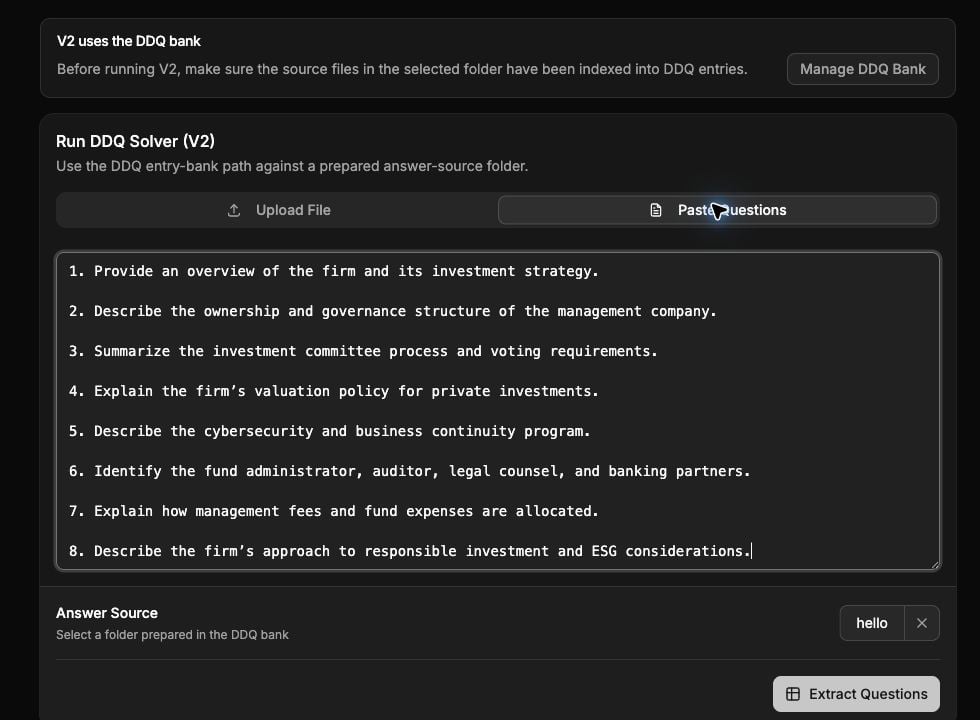 Go to **Workflows → DDQ Solver**. Click **Run DDQ Solver (V2)**.
Choose **Upload File** or **Paste Questions**. File uploads support PDF, DOCX, TXT, XLSX, XLS, and CSV files up to 10 MB.
Under **Answer Source**, select the prepared DDQ Bank folder or source folder that should bound the search.
Click **Extract Questions**. Metal creates the run and extracts the questionnaire into individual questions.
## Review questions and generate answers
On the run page:
1. Review the extracted questions before answering begins.
2. Remove headings, instructions, duplicates, or other rows that are not questions when the remove control is available.
3. Click **Start Answering**. Metal processes each question against the selected answer source.
4. Follow the progress counts for processed, answered, unanswered, and errored questions.
5. If the run fails, review the error and use **Retry** after correcting the source or input problem.
You can leave the page while a run continues and return from **DDQ Runs**. Metal also shows the run status in the list.
## Review the response
Treat the generated output as a sourced draft, not an automatically approved external response.
Go to **Workflows → DDQ Solver**. Click **Run DDQ Solver (V2)**.
Choose **Upload File** or **Paste Questions**. File uploads support PDF, DOCX, TXT, XLSX, XLS, and CSV files up to 10 MB.
Under **Answer Source**, select the prepared DDQ Bank folder or source folder that should bound the search.
Click **Extract Questions**. Metal creates the run and extracts the questionnaire into individual questions.
## Review questions and generate answers
On the run page:
1. Review the extracted questions before answering begins.
2. Remove headings, instructions, duplicates, or other rows that are not questions when the remove control is available.
3. Click **Start Answering**. Metal processes each question against the selected answer source.
4. Follow the progress counts for processed, answered, unanswered, and errored questions.
5. If the run fails, review the error and use **Retry** after correcting the source or input problem.
You can leave the page while a run continues and return from **DDQ Runs**. Metal also shows the run status in the list.
## Review the response
Treat the generated output as a sourced draft, not an automatically approved external response.
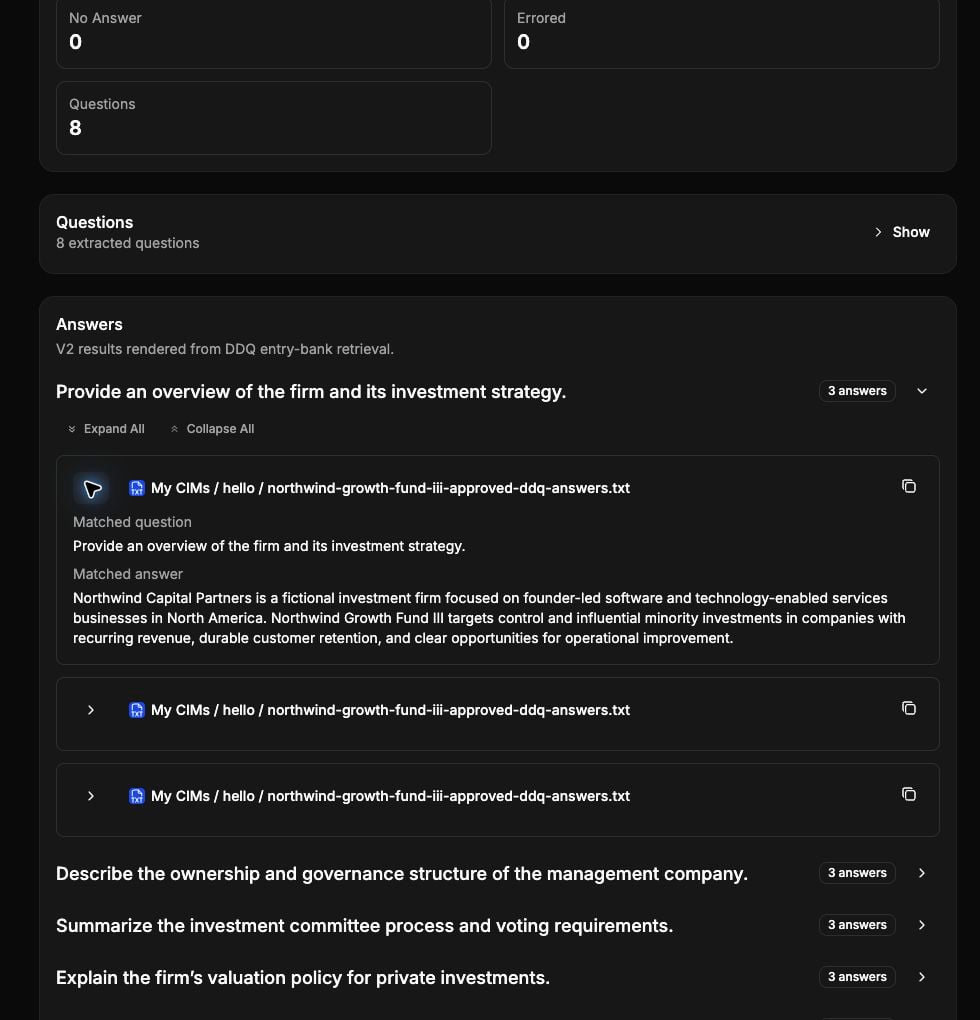 * Read every answer for accuracy, scope, and fund-specific relevance.
* Open the supporting citation to inspect the source document and page.
* Investigate **No answer found** instead of filling the gap with an assumption.
* Escalate conflicting or outdated source material to the content owner.
* Confirm that legal, compliance, performance, and commercial statements have the required human approval.
Do not send a generated DDQ response without review. Retrieval quality depends on the selected source boundary and the quality of the material inside it.
## Export the completed questionnaire
When the answer and export phases finish, click **Download Export** on the run page. Open the downloaded file and complete your firm's final formatting and approval process before sending it externally.
Past runs remain available under **Workflows → DDQ Solver**. Use them to understand what was answered and which source material supported the run.
## Troubleshooting
### No prepared source folders appear
Open **Manage DDQ Bank**, select a bank folder, and index its source files. A folder becomes available to the current DDQ flow after it contains prepared DDQ entries.
### A source document is inaccessible
You need permission to the selected source material. Ask the workspace or folder owner to grant access, then reopen the run.
### Many questions return no answer
Check that you selected the correct fund or strategy folder, that its files finished indexing, and that the source material actually contains approved answers. Expand the source boundary only when the additional material belongs in the response context.
### The questionnaire does not extract cleanly
Remove decorative sheets, instructions, and merged layouts where practical, or use **Paste Questions** to provide a clean question set directly.
## Related
Put DDQs into the broader IR and capital formation process.
Organize and permission the source material Metal uses.
Learn how workflow runs, outputs, artifacts, and permissions work.
## Related topics
- [Run investor relations and fundraising in Metal](/help/run-fundraising.md)
- [Run and review Metal AI workflows](/help/workflows.md)
- [Investor relations: funds, LPs, fundraising](/help/investor-relations.md)
- [Metal user guide: get oriented and find your way](/help/index.md)
- [Dashboards](/help/admin/dashboards.md)
* Read every answer for accuracy, scope, and fund-specific relevance.
* Open the supporting citation to inspect the source document and page.
* Investigate **No answer found** instead of filling the gap with an assumption.
* Escalate conflicting or outdated source material to the content owner.
* Confirm that legal, compliance, performance, and commercial statements have the required human approval.
Do not send a generated DDQ response without review. Retrieval quality depends on the selected source boundary and the quality of the material inside it.
## Export the completed questionnaire
When the answer and export phases finish, click **Download Export** on the run page. Open the downloaded file and complete your firm's final formatting and approval process before sending it externally.
Past runs remain available under **Workflows → DDQ Solver**. Use them to understand what was answered and which source material supported the run.
## Troubleshooting
### No prepared source folders appear
Open **Manage DDQ Bank**, select a bank folder, and index its source files. A folder becomes available to the current DDQ flow after it contains prepared DDQ entries.
### A source document is inaccessible
You need permission to the selected source material. Ask the workspace or folder owner to grant access, then reopen the run.
### Many questions return no answer
Check that you selected the correct fund or strategy folder, that its files finished indexing, and that the source material actually contains approved answers. Expand the source boundary only when the additional material belongs in the response context.
### The questionnaire does not extract cleanly
Remove decorative sheets, instructions, and merged layouts where practical, or use **Paste Questions** to provide a clean question set directly.
## Related
Put DDQs into the broader IR and capital formation process.
Organize and permission the source material Metal uses.
Learn how workflow runs, outputs, artifacts, and permissions work.
## Related topics
- [Run investor relations and fundraising in Metal](/help/run-fundraising.md)
- [Run and review Metal AI workflows](/help/workflows.md)
- [Investor relations: funds, LPs, fundraising](/help/investor-relations.md)
- [Metal user guide: get oriented and find your way](/help/index.md)
- [Dashboards](/help/admin/dashboards.md)