> ## Documentation Index
> Fetch the complete documentation index at: https://docs.metal.ai/llms.txt
> Use this file to discover all available pages before exploring further.
# Authentication
> Authenticate Metal API requests with API keys.
The Metal API uses API keys to authenticate requests. Each key belongs to a single organization, and every request is automatically scoped to that organization's data.
## API key credentials
An API key has two parts that are always sent together:
| Credential | Header | Description |
| ---------- | ------------------- | -------------------------------------------- |
| Client ID | `x-metal-client-id` | Public identifier for the key. |
| Secret key | `x-metal-api-key` | Secret value that authenticates the request. |
Send both headers on every request:
```bash theme={"theme":{"light":"github-light","dark":"github-dark"}}
curl https://api.metal.ai/v1/companies \
-H "x-metal-client-id: $METAL_CLIENT_ID" \
-H "x-metal-api-key: $METAL_API_KEY"
```
The secret key is returned only once, when the key is created. If you lose it, delete the key and create a new one. Never expose it in client-side code, browsers, or mobile apps. API keys are for server-to-server use only.
## Create a key in the app
Create your first API key from the Metal app. You need an admin role to manage keys.
In the Metal app, go to **Settings → Organization → API & MCP Access**.
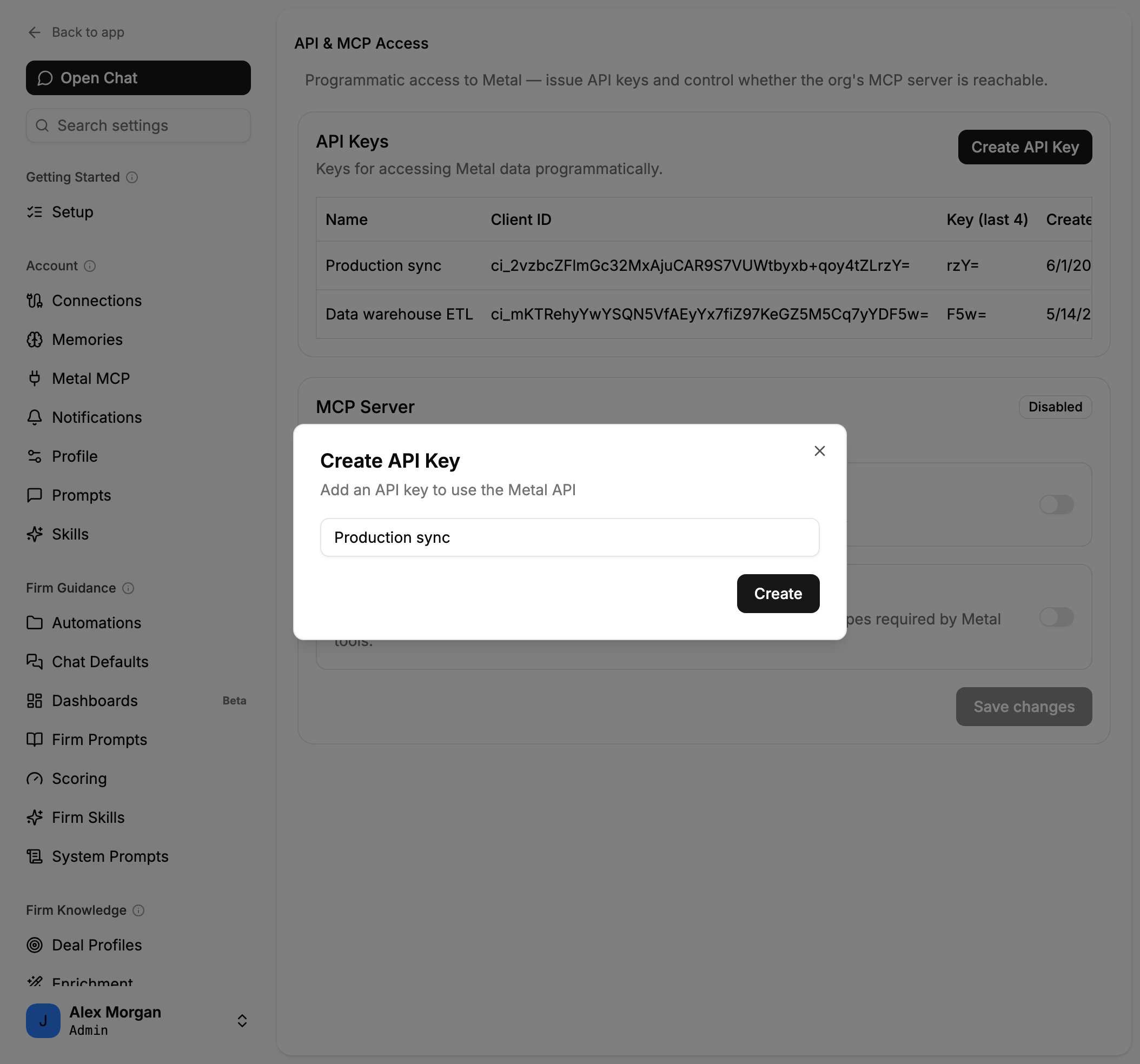
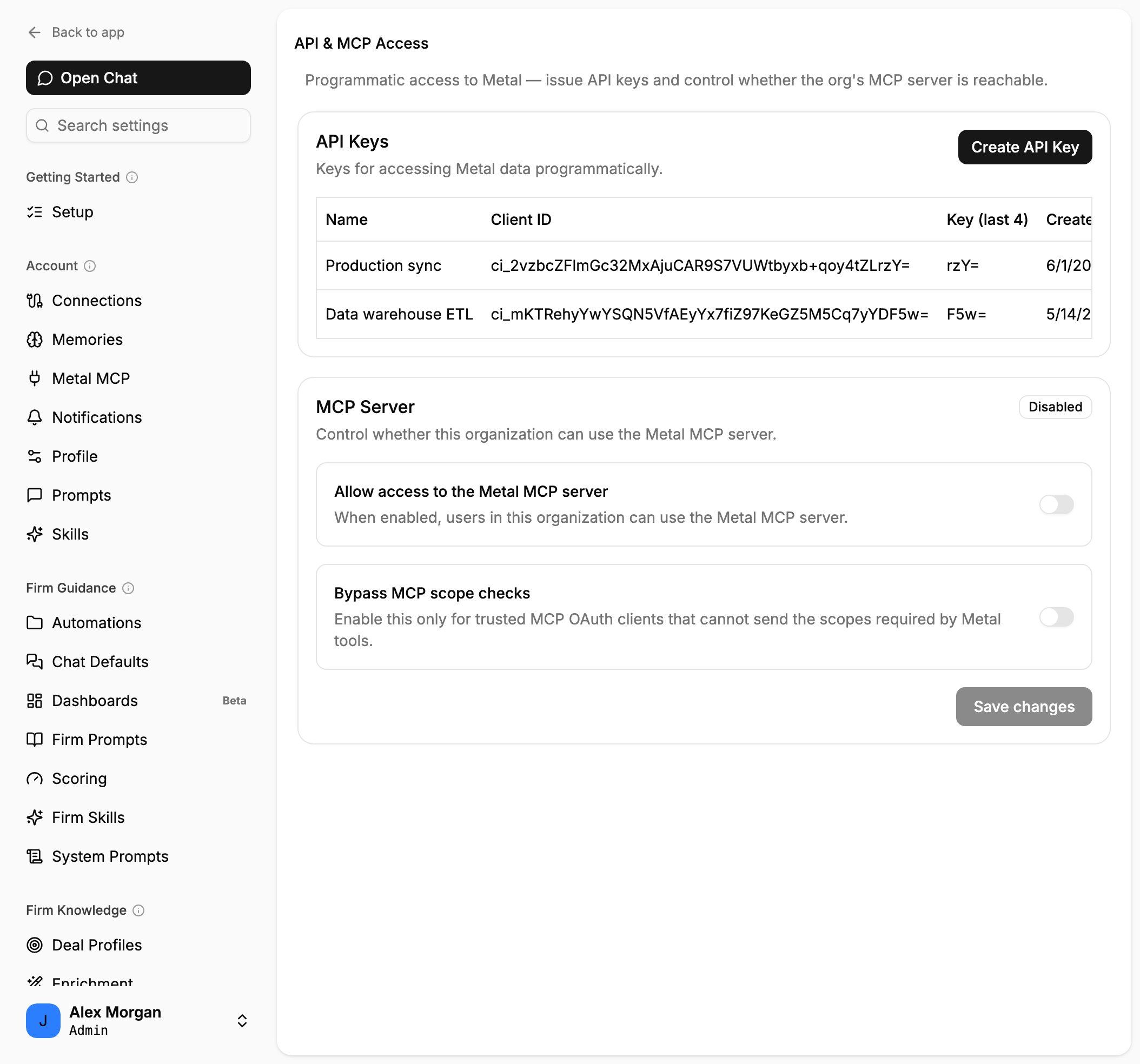 In the **API Keys** card, click **Create API Key**, enter a descriptive **Name** (for example, "Production sync"), and click **Create**.
 Metal shows the new key's **Client ID** (`x-metal-client-id`) and **API Key** (`x-metal-api-key`). Copy both and store them securely.
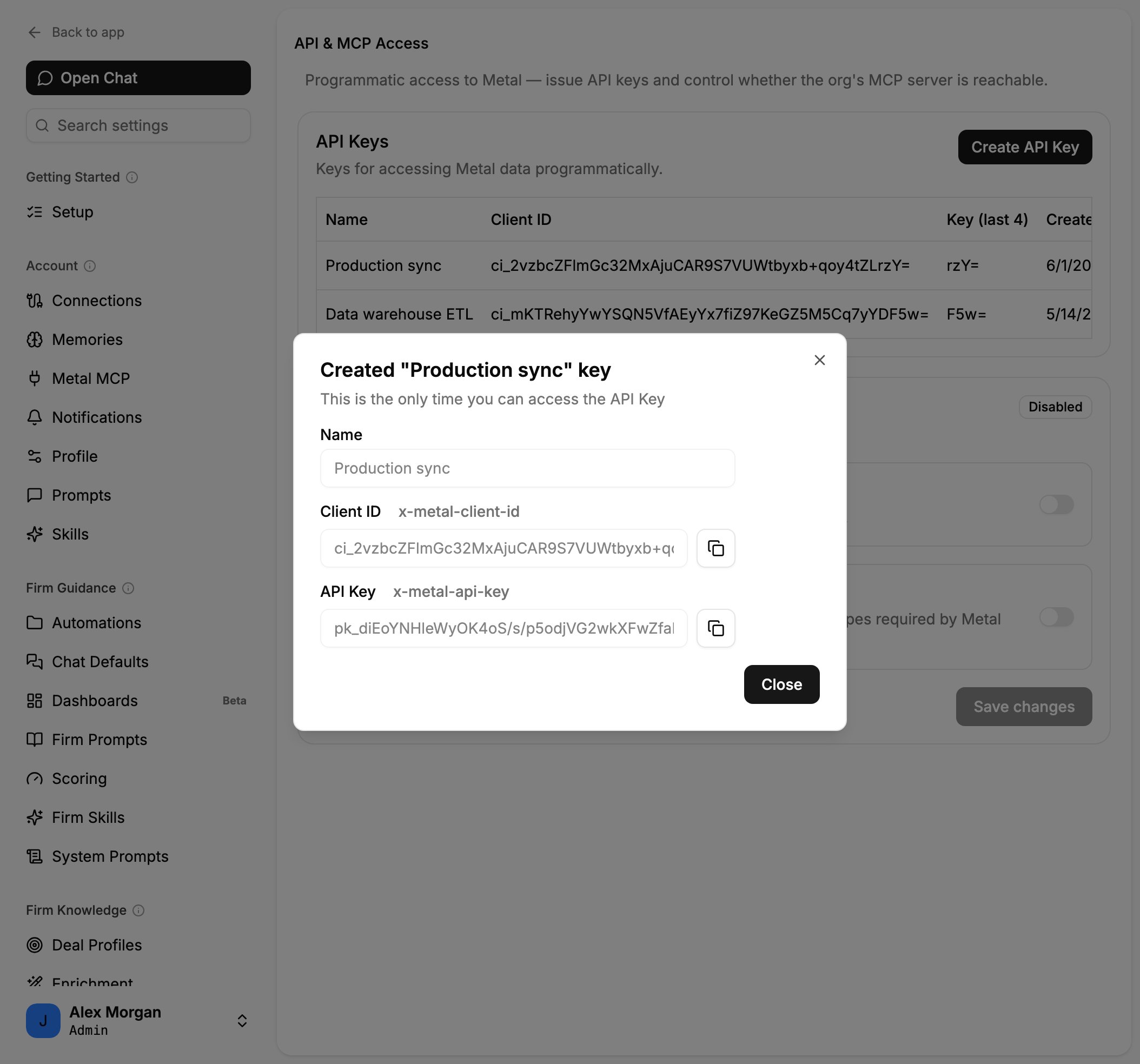 This is the only time the **API Key** secret is shown. If you lose it, delete the key and create a new one.
The number of keys you can create depends on your plan. If you hit the limit, delete unused keys before creating new ones.
## Manage keys with the API
Once you have a key, you can review and revoke keys programmatically with the [API keys endpoints](/api-reference/introduction):
* `GET /v1/keys` lists every key in your organization. Secrets are never returned again, only metadata such as `name` and `keyLastFour`.
* `DELETE /v1/keys/{key}` revokes a key immediately. Revoked keys stop working within a short cache window.
Keys are created in the Metal app, not through the API. Use the app to create a key, then manage its lifecycle here.
## Best practices
Create a distinct key for each integration or environment so you can rotate or revoke them independently.
Create a new key, deploy it, then delete the old one to rotate without downtime.
Keep keys in a secret manager or environment variables, never in source control.
Name keys after the integration that uses them so you can audit and revoke precisely.
## Errors
If credentials are missing or invalid, the API responds with `401 Unauthorized`:
```json theme={"theme":{"light":"github-light","dark":"github-dark"}}
{ "error": "invalid api key or clientId" }
```
See [Errors](/guides/errors) for the full list of status codes and how to handle them.
This is the only time the **API Key** secret is shown. If you lose it, delete the key and create a new one.
The number of keys you can create depends on your plan. If you hit the limit, delete unused keys before creating new ones.
## Manage keys with the API
Once you have a key, you can review and revoke keys programmatically with the [API keys endpoints](/api-reference/introduction):
* `GET /v1/keys` lists every key in your organization. Secrets are never returned again, only metadata such as `name` and `keyLastFour`.
* `DELETE /v1/keys/{key}` revokes a key immediately. Revoked keys stop working within a short cache window.
Keys are created in the Metal app, not through the API. Use the app to create a key, then manage its lifecycle here.
## Best practices
Create a distinct key for each integration or environment so you can rotate or revoke them independently.
Create a new key, deploy it, then delete the old one to rotate without downtime.
Keep keys in a secret manager or environment variables, never in source control.
Name keys after the integration that uses them so you can audit and revoke precisely.
## Errors
If credentials are missing or invalid, the API responds with `401 Unauthorized`:
```json theme={"theme":{"light":"github-light","dark":"github-dark"}}
{ "error": "invalid api key or clientId" }
```
See [Errors](/guides/errors) for the full list of status codes and how to handle them.